
Free Preparation Discussions
 MENU
MENU
Workday Pro Time Tracking Exam Questions
- Topic 1: Time Tracking Fundamentals: Covers the core concepts of Workday time tracking, including basic setup, terminology, and how time is captured within the system.
- Topic 2: Time Entry and Validation: Focuses on how workers enter time, how entries are validated, and the rules that ensure accuracy and compliance.
- Topic 3: Time Calculation and Processing: Explains how Workday calculates time, including rules for overtime, shifts, and processing of recorded hours.
- Topic 4: Time Off and Leave Integration: Describes how time tracking integrates with time off plans, leave requests, and absence management processes.
- Topic 5: Reporting and Auditing: Covers how to generate reports, monitor time data, and audit entries to ensure accuracy and compliance with policies.
Free Workday Workday Pro Time Tracking Exam Actual Questions
Note: Premium Questions for Workday Pro Time Tracking were last updated On Sep. 11, 2026 (see below)
Where can you configure daily and weekly totals for a worker's time entry calendar?
The correct answer is B. Time calculation. In Workday Time Tracking, daily and weekly totals on a worker's time entry calendar are driven through the Time Calculation framework. Time calculations are used to evaluate entered time and produce results such as totals, overtime, premiums, exceptions, and other rule-based outcomes. When Workday needs to total time across a day or across a week, that logic is configured in a time calculation because calculations define how time is interpreted, accumulated, and processed.
The other options do not control this type of totaling behavior. A time calculation tag is mainly used to organize or identify calculations, not to perform the actual totaling logic. A time entry code identifies the type of time being entered, such as regular hours, training, or on-call time, but it does not define calendar total behavior. A time entry template helps control the layout or default structure for time entry, but it is not where daily or weekly total rules are configured.
So, if the question asks specifically where Workday configures the totals shown for a worker's calendar, the best and correct choice is Time calculation.
Refer to the following scenario to answer the question below.
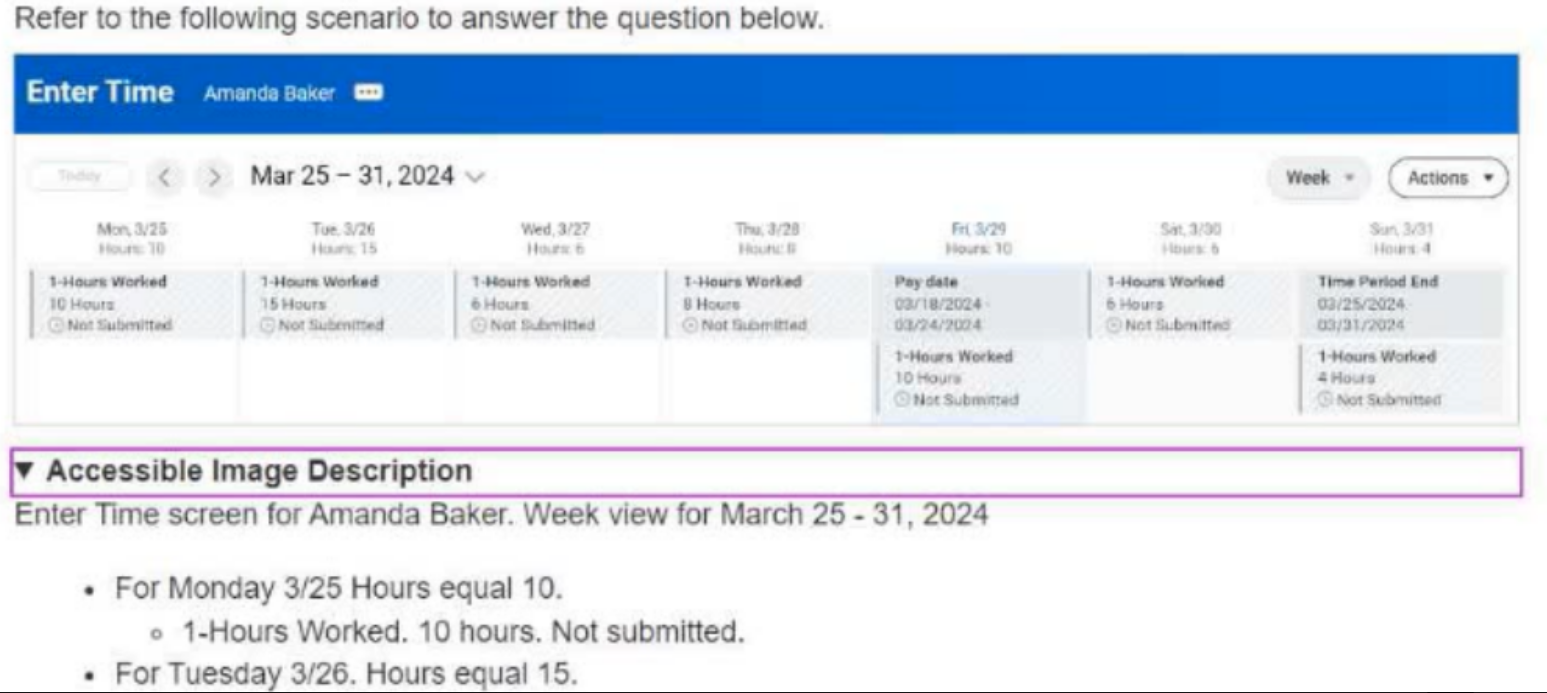
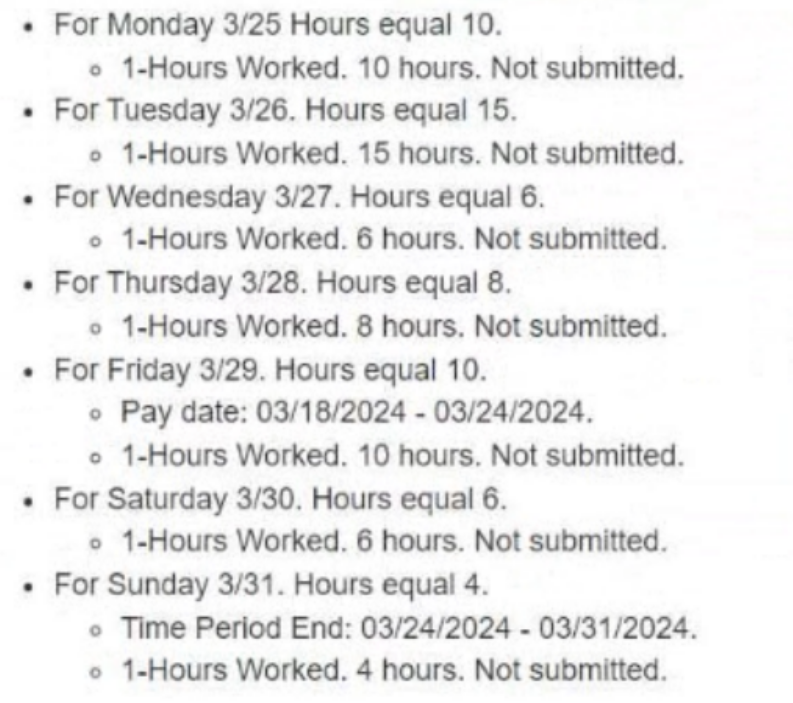
Amanda Baker is eligible for the following calculations: Daily OT > 8 regular hours in a day, Daily double time > 12 regular hours in a day, Weekly OT > 40 regular hours in a week.
How many time calculation tags are assigned on the calculated tab for Tuesday?
The correct answer is C. 3. On Tuesday, Amanda Baker reported 15 hours. Based on the rules provided, Workday Time Tracking would evaluate those 15 hours against the applicable daily and weekly thresholds. The first 8 hours remain regular hours. Since she worked more than 8 hours in the day, the next block of hours qualifies for daily overtime. Because she also exceeded 12 hours in the same day, the hours above 12 qualify for daily double time.
That means Tuesday's calculated results would typically be split into three calculation tag categories: Regular, Daily Overtime, and Daily Double Time. This produces a total of 3 time calculation tags on the calculated tab for that day.
The weekly overtime rule does not add a fourth tag for Tuesday. Weekly overtime applies only after total regular hours for the week exceed 40. By the end of Tuesday, Amanda has worked 10 hours on Monday + 15 hours on Tuesday = 25 total hours, which is still below the weekly 40-hour threshold. Therefore, weekly overtime has not yet been triggered on Tuesday.
So the correct count of calculation tags assigned for Tuesday is 3.
Refer to the following scenario to answer the question below.
You have received a requirement to create a set of Time Tracking Components for workers who have the following attributes:
Time Type = Salary
Country = United States
Supervisory Organization = Facilities Group
You want to create a single Time Tracking Eligibility Rule for all new configuration components.
What business object must you use when selecting fields for the conditions?
The correct answer is D. Worker.
In Workday Time Tracking, Time Tracking Eligibility Rules are built by selecting a business object and then defining condition rules based on fields available from that object and its related fields. In this scenario, the eligibility criteria include attributes such as Time Type, Country, and Supervisory Organization. These are evaluated in the context of the worker record, because the rule is determining which workers should receive the new Time Tracking components.
The Worker business object is the correct choice because it serves as the central object for worker-specific eligibility evaluation and allows access to related worker attributes, including employment and organizational data. This makes it possible to create one rule that consistently evaluates all three conditions together for a worker population.
The other options are too narrow. Compensation focuses on pay-related data, Position centers on the job position, and Organization focuses on organizational structures. Although some of the required values may relate to those areas, the eligibility rule itself must evaluate them from the perspective of the worker who is being assigned the Time Tracking setup.
That is why the appropriate business object for this rule is Worker.
What EIB is used for loading legacy time entry data for configuration testing?
The correct answer is B. Import Reported Time Blocks.
In Workday Time Tracking, when an organization needs to load legacy time entry data into the tenant for configuration testing, the appropriate Enterprise Interface Builder (EIB) is Import Reported Time Blocks. This EIB is specifically designed to bring in historical or external reported time entries so that organizations can validate how Workday processes time calculations, overtime rules, validations, approvals, and downstream integrations using realistic data.
This is especially useful during implementation or testing cycles when the team wants to confirm that configured time entry templates, time calculations, and administrative processes behave correctly with actual time data patterns from the legacy system. By importing reported time blocks, Workday can apply the configured rules and allow testers to compare expected and actual outcomes.
The other options are not intended for loading time entry history. Payroll Input is used for payroll-related input data, not for time entry blocks. Put Period Schedule is used to maintain or load period schedule information. Put Holiday Calendar is for holiday setup, not worker time records. None of those options load the detailed reported worked-time entries needed for time tracking configuration testing.
Therefore, the correct EIB for loading legacy time entry data into Workday Time Tracking is Import Reported Time Blocks.
What app provides a central location for cards that display frequently used tasks and reports for Time Tracking?
The correct answer is D. Time Administrator Home.
In Workday Time Tracking, Time Administrator Home is the app designed to provide administrators with a centralized workspace for managing time tracking activities. It displays cards that surface commonly used tasks, reports, alerts, and administrative actions, making it easier for time administrators to access the most relevant tools from one place. This home page is intended to improve efficiency by organizing frequent Time Tracking functions into a single operational hub.
The other options are not apps that provide a card-based administrative home experience. All Time Entry Templates is a report or task used to review configured templates, not a central home app. View Worker's Time Eligibility is a worker-specific report used to review which time tracking components apply to a worker. View Worker's Time Eligibility by Organization is also a reporting function, focused on reviewing eligibility across organizations rather than serving as a dashboard.
Because the question specifically asks for an app that offers a central location for cards showing frequently used Time Tracking tasks and reports, Time Administrator Home is the only option that fits that description. It is the main administrative landing area for ongoing monitoring and action in Workday Time Tracking.
Therefore, the correct answer is D. Time Administrator Home.
- Select Question Types you want
- Set your Desired Pass Percentage
- Allocate Time (Hours : Minutes)
- Create Multiple Practice tests with Limited Questions
- Customer Support
Donna Peterson
15 days agoStephanie Hill
21 days agoEric Johnson
2 months agoEmma Rivera
2 months agoTimothy Martin
3 months agoAmy Peterson
3 months agoMichelle Torres
4 months agoBrenda Nguyen
4 months agoAmanda Green
4 months agoHarold Hill
5 months agoCrystal Rivera
5 months agoJohn Anderson
5 months agoHarold Lewis
5 months agoDeborah Adams
4 months agoMargaret Taylor
4 months ago