
Free Preparation Discussions
 MENU
MENU
Microsoft AZ-204 Exam - Topic 19 Question 23 Discussion
Topic #: 19
A company is developing a solution that allows smart refrigerators to send temperature information to a central location. You have an existing Service Bus.
The solution must receive and store messages until they can be processed. You create an Azure Service Bus instance by providing a name, pricing tier, subscription, resource group, and location.
You need to complete the configuration.
Which Azure CLI or PowerShell command should you run?
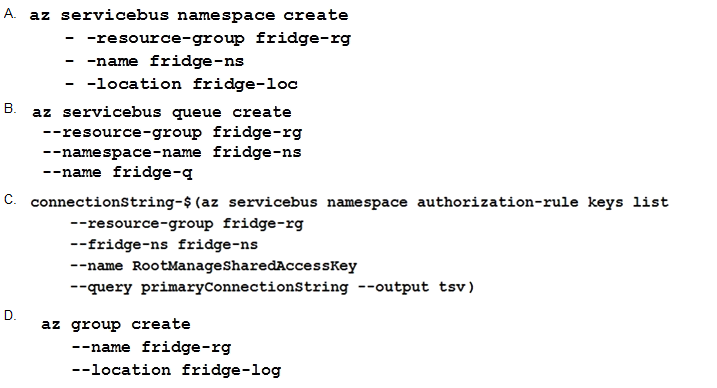
A service bus instance has already been created (Step 2 below). Next is step 3, Create a Service Bus queue.
Note:
Steps:
Step 1: # Create a resource group
resourceGroupName='myResourceGroup'
az group create --name $resourceGroupName --location eastus
Step 2: # Create a Service Bus messaging namespace with a unique name
namespaceName=myNameSpace$RANDOM
az servicebus namespace create --resource-group $resourceGroupName --name $namespaceName --location eastus
Step 3: # Create a Service Bus queue
az servicebus queue create --resource-group $resourceGroupName --namespace-name $namespaceName --name BasicQueue
Step 4: # Get the connection string for the namespace
connectionString=$(az servicebus namespace authorization-rule keys list --resource-group $resourceGroupName --namespace-name $namespaceName --name RootManageSharedAccessKey --query primaryConnectionString --output tsv)
References:
https://docs.microsoft.com/en-us/azure/service-bus-messaging/service-bus-quickstart-cli
Yvonne
7 months agoNickie
8 months agoEffie
8 months agoJulene
8 months agoTawna
8 months agoNorah
8 months agoHoa
8 months agoHarrison
8 months agoBeatriz
8 months agoFrancine
8 months agoAlline
8 months agoBrynn
8 months agoPok
9 months agoTonette
9 months agoBritt
9 months ago