
Free Preparation Discussions
 MENU
MENU
Dell EMC D-PSC-MN-01 Exam Questions
- Topic 1: PowerScale Hardware Concepts: This part of the exam assesses the expertise of IT infrastructure architects, and emphasizes the ability to differentiate between the architectural elements of PowerScale platforms, understand their specific use cases, and compare design specifications across PowerScale hardware models.
- Topic 2: PowerScale Hardware Maintenance: Targeted at system administrators, this section focuses on key tasks involved in maintaining PowerScale hardware. It examines candidates' proficiency in completing initial maintenance steps, preparing nodes for operation, and processing Field Replaceable Unit (FRU) and Customer Replaceable Unit (CRU) requests.
- Topic 3: PowerScale Hardware Installation: This section evaluates the installation capabilities of hardware engineers to test candidates on their ability to plan and execute the installation of PowerScale hardware, prepare the maintenance site, and adhere to best practices when installing racks, nodes, and related components.
- Topic 4: PowerScale Implementation: Geared towards cluster administrators, this section covers the practical aspects of implementing PowerScale systems. It focuses on creating new clusters, integrating nodes into existing clusters, and applying alternative configurations or accessories to improve performance.
Free Dell EMC D-PSC-MN-01 Exam Actual Questions
Note: Premium Questions for D-PSC-MN-01 were last updated On Aug. 24, 2026 (see below)
Which resource provides up-to-date instructions to service a Dell EMC PowerScale system?
Dell SolVe Online (and SolVe Desktop) is the primary resource for obtaining up-to-date, detailed service procedures for Dell EMC PowerScale systems.
Key Points:
Purpose of Dell SolVe Online:
Provides the latest service procedures, including installation, replacement, and troubleshooting guides.
Ensures that technicians have access to current and accurate information.
Features:
Interactive procedures with step-by-step instructions.
Customizable checklists and workflows.
Regularly updated content reflecting the latest product updates and best practices.
Accessibility:
Available online and as a downloadable application (SolVe Desktop).
Requires authentication to ensure that only authorized personnel access sensitive service information.
Dell PowerScale Reference:
Dell EMC Support Resources:
Directs service personnel to use SolVe Online for official procedures.
Emphasizes the importance of using approved resources to maintain product integrity and support agreements.
Incorrect Options:
Option A (Dell Quick Reference Guide) provides summary information but not detailed service procedures.
Option B (Dell Enterprise Configuration Services) is a professional service offering, not a resource for procedures.
Option D (Dell iDRAC Service Module) is a management tool for servers, not for accessing service instructions for PowerScale systems.
The SSD has failed in a Dell EMC PowerScale H400 node that has one SSD installed. A technician is asked to replace it.
Where should the new drive be installed?
In a Dell EMC PowerScale H400 node that has one SSD installed and requires replacement, the new SSD should be installed in the correct slot to ensure proper operation.
Key Points:
SSD Slot Location:
The H400 node uses sleds for drive placement.
SSDs are installed in specific positions to support metadata acceleration and caching functions.
Position 0 and sled E is designated for the SSD in an H400 node.
Drive Replacement Procedure:
Identify the correct sled and position for the SSD.
Power down the node if necessary, following safety procedures.
Remove the faulty SSD and install the new SSD in the correct slot.
Importance of Correct Placement:
Installing the SSD in the wrong slot can lead to the node not recognizing the drive.
May affect the performance and data protection features of the cluster.
Dell PowerScale Reference:
Dell EMC PowerScale Hardware Replacement Guide:
Section on SSD Replacement for H400 Nodes:
Specifies that the SSD should be installed in Position 0 of sled E.
Provides diagrams and step-by-step instructions.
Node Documentation:
Illustrates the drive bay numbering and sled identification.
Emphasizes the importance of installing drives in the correct positions.
Incorrect Options:
Option A (Left slot at the back of the node) and Option D (Right slot at the back of the node) do not correspond to the correct SSD slot.
Option B (Position 0 and sled A) is not the designated slot for the SSD in an H400 node.
Refer to the exhibit.
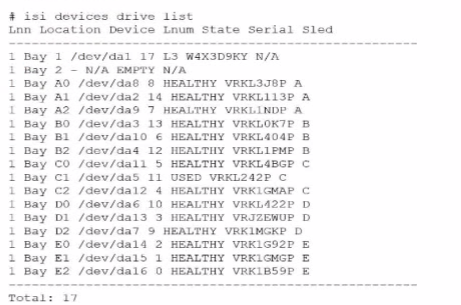
An engineer replaced the drive in C1. They run the isi devices drive list command and obtain the output that is shown.
What action must the engineer take?
In the output of the isi devices drive list command shown in the exhibit, the drive in location C1 is marked as 'USED,' with the serial number VRKL242P. This indicates that the drive has been replaced but has not yet been initialized or formatted for use within the PowerScale cluster.
To make the drive usable, it must be formatted. The correct procedure to follow is to use the isi devices drive format command, specifying the drive location (C1 in this case). This will prepare the drive for use in the cluster, ensuring that it is recognized and available for OneFS to start writing data to it.
Steps to format the drive:
Log in to the OneFS cluster using an SSH session with an account that has the necessary privileges.
Run the following command to format the new drive:
bash
Copy code
isi devices drive format C1
This command will format the drive located at C1, making it available for use in the cluster.
After the format is complete, verify that the drive is now in a HEALTHY state by running:
isi devices drive list
This should display the new status of the drive as HEALTHY, indicating that it has been successfully formatted and is ready for data operations.
This process is outlined in Dell's PowerScale Administration Guide and ensures the correct initialization of new or replaced drives.
Which statement is accurate regarding Dell EMC PowerScale hardware platforms?
Dell EMC PowerScale Gen 6 nodes are available in different form factors to meet various storage and performance needs.
Gen 6 Node Form Factors:
2U Chassis:
Models like the F800 and H500.
Designed for high performance with moderate capacity.
4U Chassis:
Models like the A2000.
Offer high-density storage options.
Clarifications:
Option A: Incorrect, as Gen 6 nodes come in both 2U and 4U chassis.
Option B: Incorrect, Gen 6.5 F200 nodes come in a 1U chassis.
Option D: Incorrect, F600 nodes can be added individually, not only as pairs.
Dell PowerScale Reference:
Dell EMC PowerScale Technical Specifications:
Lists models with their corresponding chassis sizes.
Provides detailed hardware descriptions.
Best Practices:
Plan rack space according to the chassis size of the nodes being deployed.
Consider power and cooling requirements based on node specifications.
What type of privileges are required to perform tenant-specific administration?
Tenant-specific administration involves managing specific zones or tenants within a Dell EMC PowerScale environment. This requires a certain level of privileges that allows administrators to control resources without having full system-wide access.
Zone Role-Based Access Control:
Definition:
Zone role-based access control allows administrators to assign permissions to users or groups for specific zones or tenants.
Functionality:
Enables delegation of administrative tasks within a particular zone without granting system-wide privileges.
Benefits:
Enhances security by limiting access.
Simplifies management in multi-tenant environments.
Why Other Options Are Incorrect:
System Root Privileges (Option B):
Root privileges grant full access to the entire system, which is not necessary for tenant-specific tasks.
System Admin Privileges (Option C):
Similar to root, system admin privileges are broader than needed.
Role-Based Access Control (Option D):
While general role-based access control is related, zone role-based access control is specifically designed for tenant administration.
Dell PowerScale Reference:
Dell EMC PowerScale OneFS Administration Guide:
Chapter on Access Control and Authentication:
Details how to implement zone role-based access control.
Provides instructions on assigning roles to users within specific zones.
Best Practices:
Regularly review and update access permissions.
Use the principle of least privilege to enhance security.
- Select Question Types you want
- Set your Desired Pass Percentage
- Allocate Time (Hours : Minutes)
- Create Multiple Practice tests with Limited Questions
- Customer Support
Timothy Taylor
7 days agoJustin Smith
20 days agoBarbara King
1 month agoDavid Cooper
2 months agoMonica Roberts
2 months agoAdam Williams
3 months agoAdam Ramirez
3 months agoBrian Walker
4 months agoHeather Jackson
4 months agoTiffany Mitchell
4 months agoMelissa Garcia
4 months agoJoseph Clark
4 months agoBrian Brown
4 months agoJennifer Collins
4 months agoSalley
5 months agoWilford
5 months agoDylan
5 months agoBenton
6 months agoThaddeus
6 months agoOctavio
6 months agoMarg
6 months agoJoye
7 months agoChantay
7 months agoRebbecca
7 months agoRebbecca
7 months agoNadine
8 months agoShizue
8 months agoGlendora
8 months agoAltha
8 months agoLenna
9 months agoBrynn
9 months agoAleta
9 months agoMarguerita
9 months agoEura
10 months agoArdella
10 months agoLang
10 months agoLore
10 months agoChau
11 months agoDerick
11 months agoTwana
11 months agoIola
11 months agoMalcolm
11 months agoTijuana
11 months agoStephaine
12 months agoRaul
12 months agoLeontine
12 months agoJaime
1 year agoDalene
1 year agoLourdes
1 year agoAlecia
1 year agoAlyce
1 year agoRicarda
1 year agoLeonor
1 year agoGlory
1 year agoLizbeth
1 year agoClare
1 year agoNoe
1 year agoTequila
1 year agoLashawnda
1 year agoJose
2 years agoHildegarde
2 years agoWilbert
2 years agoJerrod
2 years agoVal
2 years agoHoney
2 years agoCherry
2 years agoSkye
2 years agoBenton
2 years agoOna
2 years agoWillard
2 years agoHester
2 years agoFranchesca
2 years agoBelen
2 years agoMalinda
2 years agoVincent
2 years agoMozell
2 years agoAbraham
2 years agoZita
2 years agoHollis
2 years ago