
Free Preparation Discussions
 MENU
MENU
Oracle 1Z0-1104-25 Exam - Topic 5 Question 8 Discussion
Topic #: 5
SIMULATION
Challenge 2
In deploying a new application, a cloud customer needs to reflect different security postures. If a security zone is enabled with the Maximum Security Zone recipe, the customer will be unable to create or update a resource in the security zone if the action violates the attached Maximum Security Zone policy.
As an application requirement, the customer requires a compute instance in the public subnet. You therefore, need to configure Custom Security Zones that allow the creation of compute instances in the public subnet.
Review the architecture diagram, which outlines the resoures you'll need to address the requirement:
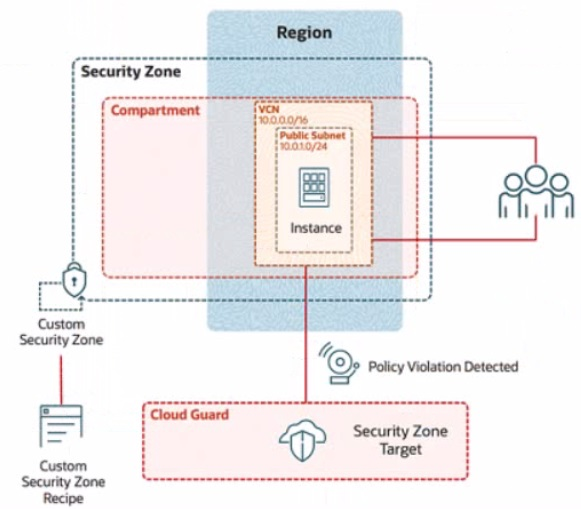
Preconfigured
To complete this requirement, you are provided with the following:
Access to an OCI tenancy, an assigned compartment, and OCI credentials
Required IAM policies
Task 5: Provision a Compute Instance
Provision a compute instance in the IAD-SP-PBT-PUBSNET-01 public subnet, where:
Name IAD-SP-PBT-1-VM-01
image: Oracle Linux 8
Shape VM: Standard, A1, Flex
Enter the OCID of the created compute instance in the text box below.
To provision a compute instance named IAD-SP-PBT-1-VM-01 in the IAD-SP-PBT-PUBSNET-01 public subnet with the specified configuration (Oracle Linux 8 image, VM Standard A1 Flex shape), follow these steps based on the Oracle Cloud Infrastructure (OCI) Compute documentation.
Step-by-Step Solution for Task 5: Provision a Compute Instance
Log in to the OCI Console:
Ensure you have access to the assigned compartment.
Navigate to Compute Instances:
From the OCI Console, click the navigation menu (hamburger icon) on the top left.
Under Compute, select Instances.
Create a New Compute Instance:
Click the Create Instance button.
Configure the Instance Details:
Name: Enter IAD-SP-PBT-1-VM-01.
Compartment: Select the assigned compartment.
Placement: Choose the availability domain (e.g., AD-1) based on your region's availability.
Select the Image:
Under Image and Shape, click Change Image.
Select Oracle Linux 8 from the platform images list.
Click Select Image.
Choose the Shape:
Click Change Shape.
Select VM Standard category.
Choose A1 Flex from the shape options.
Configure the OCPUs (e.g., 1 OCPU) and memory (e.g., 6 GB) as needed for A1 Flex, then click Select Shape.
Configure Networking:
Under Networking, ensure the Virtual Cloud Network is set to IAD-SP-PBT-VCN-01.
Set the Subnet to IAD-SP-PBT-PUBSNET-01 (public subnet with CIDR 10.0.1.0/24).
Enable Assign a public IPv4 address to allow external connectivity.
Leave the default security list or assign a custom one if configured previously.
Set Up SSH Access:
Under Add SSH Keys, either:
Upload your public SSH key file, or
Paste your public SSH key manually.
This ensures you can access the instance via SSH.
Launch the Instance:
Click Create to provision the compute instance.
Wait for the instance to reach the Running state (this may take a few minutes).
Note the Instance OCID:
Once the instance is running, go to the instance details page for IAD-SP-PBT-1-VM-01.
Copy the OCID displayed (e.g., ocid1.instance.oc1..<unique_string>).
OCID of the Created Compute Instance
Enter the OCID of the created compute instance (IAD-SP-PBT-1-VM-01) into the text box. The exact OCID will be available after Step 9 (e.g., ocid1.instance.oc1..<unique_string>).
Notes
Ensure the security zone IAD_SAP-PBT-CSZ-01 and its associated recipe IAD-SP-PBT-CSP-01 allow compute instance creation in the public subnet (10.0.1.0/24).
Verify network connectivity by testing SSH access using the public IP assigned to the instance.
Kayleigh
5 hours agoMatthew
5 days agoLeigha
10 days agoLeeann
29 days agoCarma
1 month agoWilburn
1 month agoLinwood
1 month agoEvangelina
2 months agoBrice
2 months agoJimmie
2 months agoGene
2 months agoChau
2 months agoSharee
3 months agoInes
3 months agoElliot
3 months agoOsvaldo
3 months agoGlory
3 months agoSharee
3 months agoVonda
4 months agoAnisha
4 months agoFlo
4 months agoAlisha
4 months ago