
Free Preparation Discussions
 MENU
MENU
Microsoft AZ-802 Exam Questions
Free Microsoft AZ-802 Exam Actual Questions
Note: Premium Questions for AZ-802 were last updated On Sep. 23, 2026 (see below)
Your network contains an Active Directory Domain Services (AD DS) domain. The domain contains two servers named Server1 and Server2. Server1 runs Windows Server 2019 and hosts multiple printers. Server2 runs Windows Server 2025. Both servers have the Print and Document Services server role installed. You need to migrate the printers hosted on Server1 to Server2. The solution must minimize administrative effort. What tools can you use?
The Print Management console includes a built-in Migrate Printers wizard, which is backed internally by the Printbrm.exe command-line tool, that exports printer queues, drivers, port configurations, and security permissions from a source print server in a single guided operation and imports all of that configuration onto a destination server with minimal manual reconfiguration required from the administrator. Windows Admin Center's printer management extension provides an equivalent, browser-based, low-effort, GUI-driven path for accomplishing the same printer migration task, giving administrators who prefer a centralized web console a second supported option that also minimizes administrative effort. Server Manager, by contrast, has no dedicated printer migration capability of its own at all; it can be used to add or remove the Print and Document Services role, but it provides no wizard or mechanism for actually exporting and importing printer configurations between servers, so including Server Manager in the answer would add unnecessary complexity rather than reduce administrative effort. Because only Print Management and Windows Admin Center actually support printer migration with minimal effort, and Server Manager does not support it at all, Print Management and Windows Admin Center only is the correct combination of tools for this scenario.
Technical requirements: Promote a new server named DC4 that runs Windows Server 2022 to a domain controller. Replicate the virtual machines from Cluster2 to an Azure Recovery Services vault. Centrally manage performance alerts in Azure for all the domain controllers. Ensure that User1 can recover objects from the Active Directory Recycle Bin. Migrate Share1 to Server2, including all the share and folder permissions. Back up Server4 and all data to an Azure Recovery Services vault. Use Hyper-V Replica to protect the virtual machines in Cluster3. Implement BitLocker Drive Encryption (BitLocker) on Server4. Whenever possible, use the principle of least privilege. You need to back up Server4 to meet the technical requirements. What should you do first?
Backing up a standalone Windows Server's files, folders, and system state directly to an Azure Recovery Services vault -- exactly what the requirement calls for on Server4 -- is done using the Microsoft Azure Recovery Services (MARS) agent, so installing that agent on Server4 is the necessary first step. Microsoft Azure Backup Server (MABS) is used for application-aware and Hyper-V virtual machine backups rather than direct file/system-state backup of a single standalone server, and while it can also protect servers, it is not the lightweight, direct-to-vault mechanism appropriate for a single standalone server like Server4 and represents unnecessary additional infrastructure. Native Windows Server Backup does not target an Azure Recovery Services vault on its own without additional agent installation, and Storage Replica provides block-level volume replication between servers rather than the point-in-time backup and long-term retention the requirement calls for. Therefore, installing the MARS agent on Server4 is the correct first step to meet this technical requirement.
You have a server that runs Windows Server 2025 Standard and has the Hyper-V role installed. You need to upgrade the server to Windows Server 2025 Datacenter. The solution must minimize downtime. What should you run?
Windows Server lets you change a server's edition in place using DISM with the /Set-Edition (or /Online /Set-Edition) option and a valid edition key, which upgrades Standard to Datacenter without requiring a full reinstall and needs only a single restart to complete, minimizing downtime for the Hyper-V host and preserving its running virtual machines and configuration. Setup.exe would perform a full in-place OS upgrade rather than an edition change, which is unnecessary and far more disruptive when the OS version itself is not changing, slmgr.vbs manages license activation rather than edition conversion, and convert.exe is unrelated (it converts file systems). DISM is Microsoft's documented tool for this specific Standard-to-Datacenter edition upgrade scenario, and running DISM /Online /Set-Edition:ServerDatacenter /ProductKey:<key> /AcceptEula is the documented command sequence for completing it with a single reboot. After the reboot, the server retains its existing roles, features, and settings, including the Hyper-V role and any virtual machines already configured, since an edition change preserves the installation rather than replacing it.
Note: This question is part of a series of questions that present the same scenario. Each question in the series contains a unique solution that might meet the stated goals. Some question sets might have more than one correct solution, while others might not have a correct solution. After you answer a question in this section, you will NOT be able to return to it. As a result, these questions will not appear in the review screen. You have an on-premises server named Server1 that runs Windows Server. You have a Microsoft Sentinel instance. You add the Windows Firewall data connector in Microsoft Sentinel. You need to ensure that Microsoft Sentinel can collect Windows Firewall logs from Server1. Solution: You onboard Server1 to Microsoft Defender for Endpoint. Does this meet the goal?
Onboarding Server1 to Microsoft Defender for Endpoint enables endpoint detection and response telemetry, threat protection, and security recommendations for that specific device, but Defender for Endpoint is a separate security product from Microsoft Sentinel and does not configure Server1 as a log source for the Windows Firewall data connector. Onboarding to Defender for Endpoint installs its own sensor and forwards its own telemetry to the Microsoft 365 Defender portal and, when connected, to Sentinel through the Defender for Endpoint connector, but it does not deploy the Azure Monitor Agent or the data collection rule that the Windows Firewall connector specifically depends on to collect Windows Firewall event log entries from Server1. Because these are two independent data pipelines with different underlying agents and different data collection rules, onboarding Server1 to Defender for Endpoint has no effect on whether Windows Firewall logs specifically reach Sentinel through the Windows Firewall connector, so this solution does not meet the stated goal.
Your on-premises network contains two subnets. The subnets contain servers that run Windows Server as shown in the following table: Server1 (192.168.1.10), Server2 (192.168.0.250), Server3 (192.168.0.240), Server4 (192.168.0.10). Server4 has the following IP configuration: IPv4 Address: 192.168.0.10; Subnet Mask: 255.255.255.0; Default Gateway: 192.168.0.1. From Server4, you can ping Server1 and Server2 successfully. When you ping Server3, you get a Request timed out response. From Server2, you can ping Server1 and Server3 successfully. The misconfiguration of which component on Server3 can cause the Request timed out response?
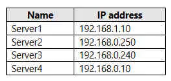
Server IP address table
Server2 (.250) and Server3 (.240) can reach each other, and Server4 (.10) can reach both Server1, which sits on the separate 192.168.1.0/24 subnet and is reached through routing, and Server2, but Server4 cannot reach Server3 even though Server2, Server3, and Server4 all nominally sit within the same 192.168.0.0/24 range. This pattern is consistent with Server3 having been configured with a smaller subnet mask than its peers, for example 255.255.255.128, which splits 192.168.0.0/24 into two separate /25 halves. Server3 (.240) and Server2 (.250) both fall within the upper half of that split range together, so each treats the other as locally reachable on the same segment, while Server4 (.10) falls in the lower half; from Server3's perspective, traffic to and from an address in the other half must be routed through a gateway rather than sent directly on the local segment, and if that routed path is not functioning correctly, the ping to and from Server4 fails while same-half communication with Server2 remains intact. A misconfigured default gateway, IP address, or DNS server on Server3 would not selectively break reachability with exactly the one host sitting in the other half of a misapplied subnet boundary while leaving same-half communication working normally, so the subnet mask is the component whose misconfiguration explains this exact symptom.
- Select Question Types you want
- Set your Desired Pass Percentage
- Allocate Time (Hours : Minutes)
- Create Multiple Practice tests with Limited Questions
- Customer Support
Currently there are no comments in this discussion, be the first to comment!