Deal of The Day! Hurry Up, Grab the Special Discount - Save 25% - Ends In 00:00:00 Coupon code: SAVE25
Welcome to Pass4Success

- Free Preparation Discussions

AutoDesk ACP-01101 Exam - Topic 2 Question 15 Discussion

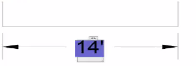
Refer to exhibit.Exhibit 1:Exhibit 2:A CAD designer edits two different dimensions by double-clicking on each dimension.The first dimension has a dark solid color background behind the dimension text, as shown in exhibit 1. The second dimension contains thy dimension text but no background color, as shown in exhibit 2.When the dimensions are not being edited, they look the same.Why docs the second dimension look different?
A) A background mask has been enabled on the dimension text
B) The dimension text field has been replaced
C) The dimension style has designated a frame around the text.
D) The dimension has a different layer assigned to It.

AutoDesk ACP-01101 Exam - Topic 2 Question 15 Discussion

Actual exam question for AutoDesk's ACP-01101 exam
Question #: 15
Topic #: 2
[All ACP-01101 Questions]

Refer to exhibit.

Exhibit 1:

Exhibit 2:
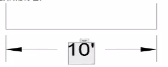
A CAD designer edits two different dimensions by double-clicking on each dimension.

The first dimension has a dark solid color background behind the dimension text, as shown in exhibit 1. The second dimension contains thy dimension text but no background color, as shown in exhibit 2.

When the dimensions are not being edited, they look the same.

Why docs the second dimension look different?

Show Suggested Answer Hide Answer
Suggested Answer: A

Inspect the Dimension Properties:

Double-click on the first dimension to open the text editor. Notice the dark solid color background behind the dimension text.

This indicates that a background mask is enabled for this dimension.

Check the Background Mask Settings:

Select the dimension and go to the Properties palette.

Under the 'Text' section, find the 'Fill Color' or 'Background Mask' setting. Ensure it is set to an appropriate color (e.g., the same as the background).

Compare with the Second Dimension:

Double-click on the second dimension and observe the absence of a background color during editing.

In the Properties palette, confirm that the 'Background Mask' is either disabled or set to 'None.'

Adjust Settings if Needed:

If you want both dimensions to have a background mask, enable the 'Background Mask' for the second dimension and choose the desired color.


AutoCAD Documentation on dimension styles and background masks: Dimension Styles

Contribute your Thoughts:

0/2000 characters
This reminds me of a similar question where we had to identify dimension styles. I feel like option A is the most likely answer.
upvoted 0 times
...
Kris
5 days ago
I'm a bit confused about the layers. I don't recall if that would change the appearance like this.
upvoted 0 times
...
Margurite
10 days ago
I remember practicing a question where the dimension style affected the appearance, so maybe option C could be it?
upvoted 0 times
...
Hector
15 days ago
I think the background mask option sounds familiar, but I'm not entirely sure if that's the right choice.
upvoted 0 times
...

Save Cancel