Free Preparation Discussions
 MENU
MENU
Free VMware 2V0-32.22 Exam Dumps September 2026
Here you can find all the free questions related with VMware Cloud Operations 8.x Professional (2V0-32.22) exam. You can also find on this page links to recently updated premium files with which you can practice for actual VMware Cloud Operations 8.x Professional Exam. These premium versions are provided as 2V0-32.22 exam practice tests, both as desktop software and browser based application, you can use whatever suits your style. Feel free to try the VMware Cloud Operations 8.x Professional Exam premium files for free, Good luck with your VMware Cloud Operations 8.x Professional Exam.MultipleChoice
An administrator has been tasked with analyzing the impact of deploying a new application The current infrastructure is using an external storage array. What vRealize Operations What-If Analysis should the administrator perform to get this information?
OptionsOrderList
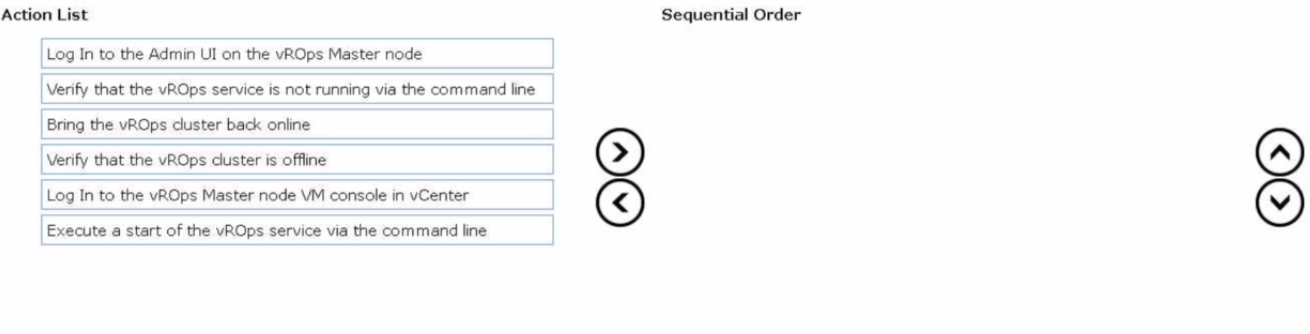
A user reports that when browsing to the vRealize Operations (vROps) user interface a 503 error is displayed. An administrator determines that the vROps duster is
offline.
Drag and drop the three correct actions the administrator must complete to troubleshoot the issue from the action list on the left and place the action into the correct sequence on the right. (Choose three.)
MultipleChoice
An administrator has been tasked with deploying VMware vRealize Suite Lifecycle Manager (vRSLCM) so that components of the vRealize Suite can be deployed.
The high level steps already completed by the administrator are listed below:
1. Download the vRealize Suite Lifecycle Manager Easy Installer executable file from the My VMware download page.
2. Locate the relevant installer file to start the vRealize Suite Lifecycle Manager Easy Installer UI.
Which three additional high level steps must the administrator take to complete the task? (Choose three.)
OptionsMultipleChoice
Forty days ago, an administrator provisioned a Virtual Machine (vm-01) in preparation for a new project. The project has now been delayed due to budgetary constraints. As part of the monthly service management checks, a second administrator executes the reclaim action on all idle virtual machines and vm-01 is listed. The second administrator accidentally reclaims all idle virtual machines including vm-01.
What action can the administrator complete to prevent this scenario from happening again?
OptionsMultipleChoice
An administrator has added Microsoft Azure as a data source in vRealize Operations.
Which is the minimal time interval that is supported for data collection?
OptionsMultipleChoice
Refer to the exhibit.
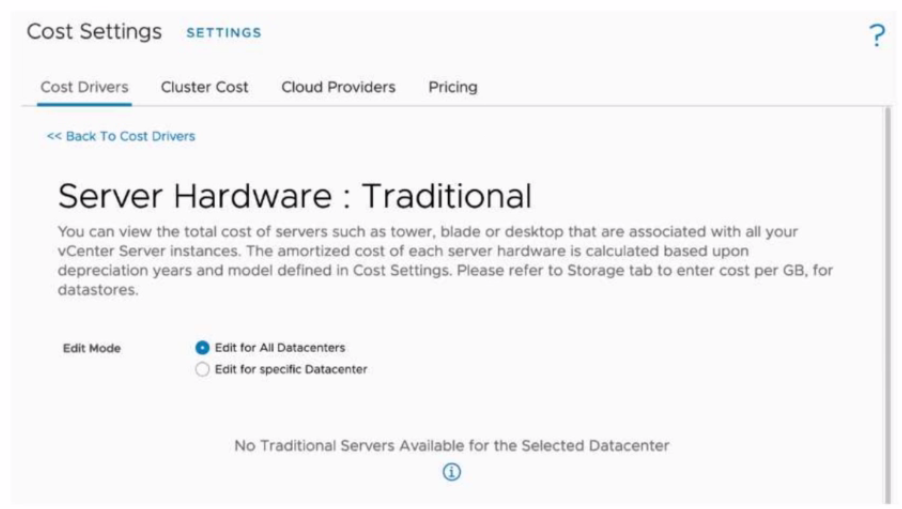
An administrator is tasked to manually upload the cost drivers of all the hosts, to obtain cost calculations accurate for their datacenter. However, when the administrator tries to update the cost drivers, the message displayed on the exhibit is shown.
what is the cause of this message?
OptionsMultipleChoice
An administrator has been tasked with optimizing capacity and overall performance in their existing virtual infrastructure. How can the capabilities of vRealize Operations help complete this task?
OptionsMultipleChoice
An administrator is updating a Content Pack within vRealize Log Insight which has user modifications.
What step should the administrator take to ensure the user modifications persist after the update?
Options