
Free Preparation Discussions
 MENU
MENU
SAP C_S4CPB Exam - Topic 1 Question 5 Discussion
Topic #: 1
SIMULATION
Business Scenario You are working on an implementation project and need to create a test user in the system for demonstrating the professional services business processes to project managers during your upcoming Fit-to-Standard workshop. Follow the instructions below to create a new test user with a basic import of worker and work agreement data.
Note: In the task below, always replace ###### with the last 6 digits of your group number.
Note:
Make sure to use the EXACT names/values/spaces as they are listed in the task.
Even forgetting a space or a number will cause the validation of the task to fail and
be marked as incorrect.
Task:
Assign the Project Manager - Professional Services (BR_PROJECT_MANAGER_PROF) business role to the new user and save.
Objective
The purpose of this task is to assign the Project Manager - Professional Services business role to the newly created test user so that the user can perform the professional-services processes required during the Fit-to-Standard workshop.
The required business role is:
Business Role ID: BR_PROJECT_MANAGER_PROF
Business Role Description: Project Manager - Professional Services
Business Scenario Explanation
In the previous task, a new test user was created for demonstrating professional services processes.
That new user now needs the correct project-manager authorization.
Without this business role, the test user will not have access to the project-manager apps, pages, and processes needed for the workshop demonstration.
This task connects the newly created user to the standard professional-services project manager role.
Important Notes
Always replace ###### with the last 6 digits of your group number.
Use the exact values as required.
The business role ID must be:
BR_PROJECT_MANAGER_PROF
Do not use a similar role or partial match.
Save at the end, otherwise the assignment remains incomplete.
Detailed Step-by-Step Procedure
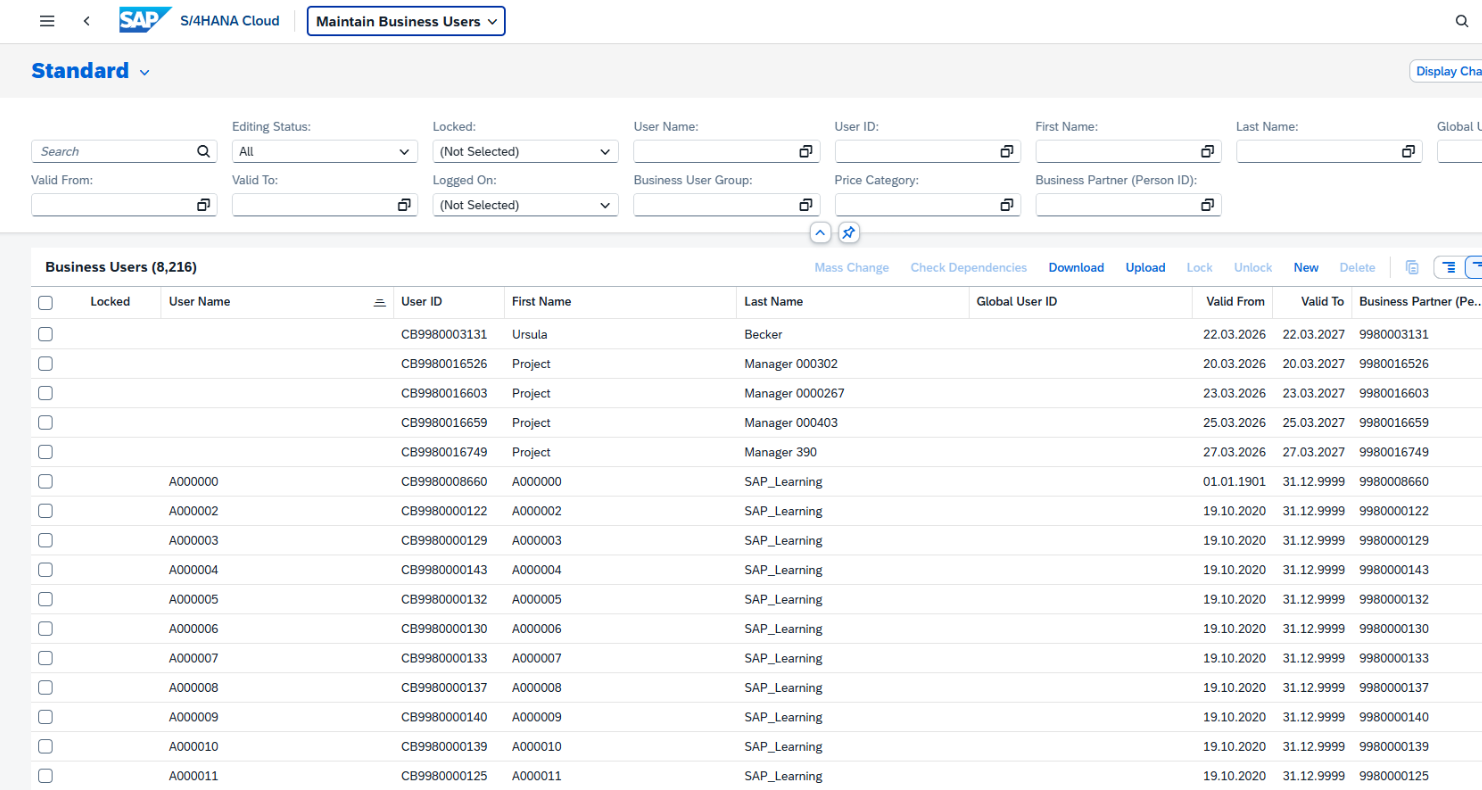
Step 1: Open the app ''Maintain Business Users''
From the SAP S/4HANA Cloud launchpad:
Log in to the system.
Use the app search.
Search for:
Maintain Business Users
Open the app.
Explanation
This app is used to maintain business users and assign business roles.
Since the new user was created in the previous task, this is the correct app to assign the new role.
Step 2: Search for the newly created Project Manager test user
In Maintain Business Users:
In the filter/search area, enter the user name of the new test user.
The required user name format is:
PM######
Example
If your group number suffix is 0000457, then search for:
PM0000457
Click Go.
Explanation
You must open the newly created project manager test user, not your own user.
The role assignment in this task belongs to the imported test user created in Task 4.

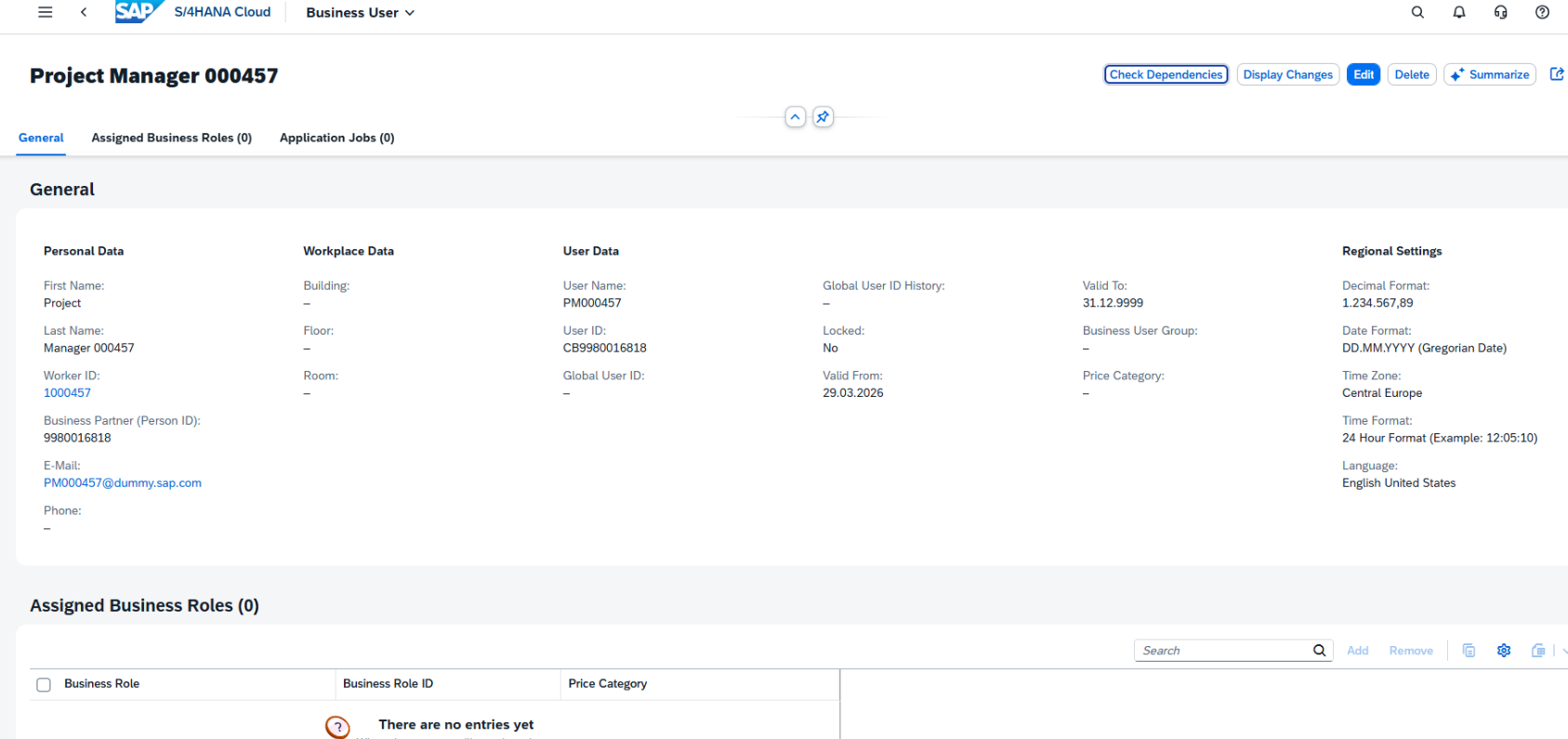
Step 3: Open the new business user record
From the search results:
Click the user entry with:
User Name = PM######
Open the detail page.
Explanation
This opens the worker/business user record where the Project Manager role will be assigned.
Step 4: Verify that you are on the correct user
Before editing, confirm the business user details are correct.
Typical expected values are:
User Name = PM######
First Name = Project
Last Name = Manager ######
E-Mail = PM######@dummy.sap.com
Explanation
This check is important because assigning the role to the wrong user would cause the simulation validation to fail.
Step 5: Switch to Edit mode
On the business user detail page:
Click Edit
Explanation
Edit mode is required so the role list can be changed.
Step 6: Open the ''Assigned Business Roles'' tab
Inside the business user record:
Click the tab:
Assigned Business Roles
Explanation
This tab shows all roles currently assigned to the new test user and is the correct place to add the project manager role.
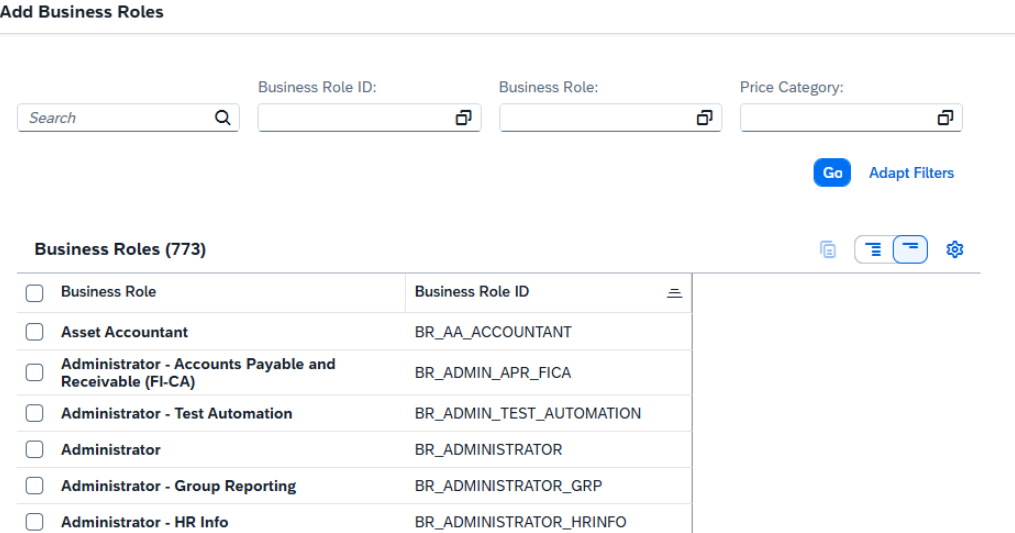
Step 7: Click Add
In the Assigned Business Roles section:
Click Add
The system opens the popup:
Add Business Roles
Explanation
This popup is used to search and add standard SAP-delivered business roles to the user.
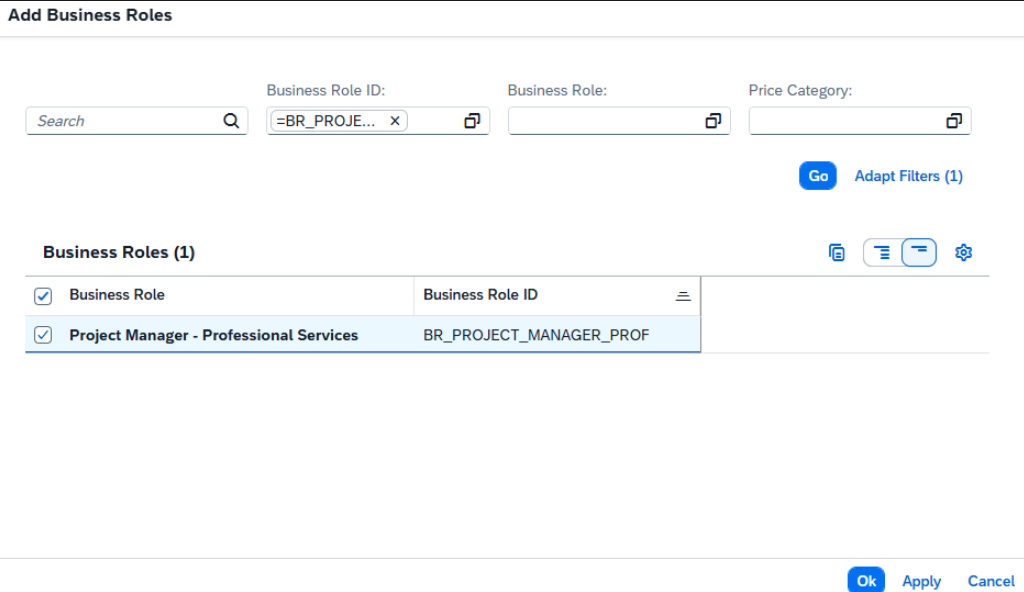
Step 8: Search for the Project Manager role
In the Add Business Roles popup:
In the filter field for business role ID, enter:
BR_PROJECT_MANAGER_PROF
Click Go
Select:
Project Manager - Professional Services
Business Role ID: BR_PROJECT_MANAGER_PROF
Explanation
This is the exact standard business role required by the task.
It provides the professional-services project manager access for the test user.
Step 9: Add the role
After selecting the role:
Click OK or Apply
Explanation
At this point, the role is added to the user in draft mode, but the change is not yet final until saved.
Step 10: Save the business user
Back on the user detail page:
Click Save
Explanation
This is the final required step.
If you do not save, the role assignment will not be stored and the task will not be completed successfully.

Step 11: Verify the assignment
After saving, confirm that the user now has the role:
Project Manager - Professional Services
BR_PROJECT_MANAGER_PROF
Explanation
This confirms that the new test user is now properly prepared for later professional-services process demonstrations.
Expected Result
After the task is completed:
the new test user PM###### exists,
the role BR_PROJECT_MANAGER_PROF is assigned,
the user is saved successfully,
the user can later be used as a professional-services project manager in the workshop scenario.
Currently there are no comments in this discussion, be the first to comment!