Free Preparation Discussions
 MENU
MENU
Free Nutanix NCM-MCI Exam Dumps September 2026
Here you can find all the free questions related with Nutanix Certified Master - Multicloud Infrastructure v6.10 (NCM-MCI) exam. You can also find on this page links to recently updated premium files with which you can practice for actual Nutanix Certified Master - Multicloud Infrastructure v6.10 Exam. These premium versions are provided as NCM-MCI exam practice tests, both as desktop software and browser based application, you can use whatever suits your style. Feel free to try the Nutanix Certified Master - Multicloud Infrastructure v6.10 Exam premium files for free, Good luck with your Nutanix Certified Master - Multicloud Infrastructure v6.10 Exam.MultipleChoice
TASK2
The security team has provided some new security requirements for cluster level security on Cluster 2.
Security requirements:
Update the password for the root user on the Cluster 2 node to match the admin user password.
Note: The 192.168.x.x network is not available. To access a node use the host IP (172.30.0.x) from the CVM.
Output the cluster-wide configuration of the SCMA policy to desktop\output.txt before changes are made.
Enable the Advanced Intrusion Detection Environment (AIDE) to run on a weekly basis for the hypervisor and cvms for Cluster 2.
Enable high-strength password policies for the hypervisor and cluster.
Ensure CVMs require SSH keys for login instead of passwords. (SSH keys are located in the desktop\Files\SSH folder.)
Ensure the cluster meets these requirements. Do not reboot any cluster components.
Note: Please ensure you are modifying the correct components.
OptionsMultipleChoice
Task 5
An administrator has been informed that a new workload requires a logically segmented network to meet security requirements.
Network configuration:
VLAN: 667
Network: 192.168.0.0
Subnet Mask: 255.255.255.0
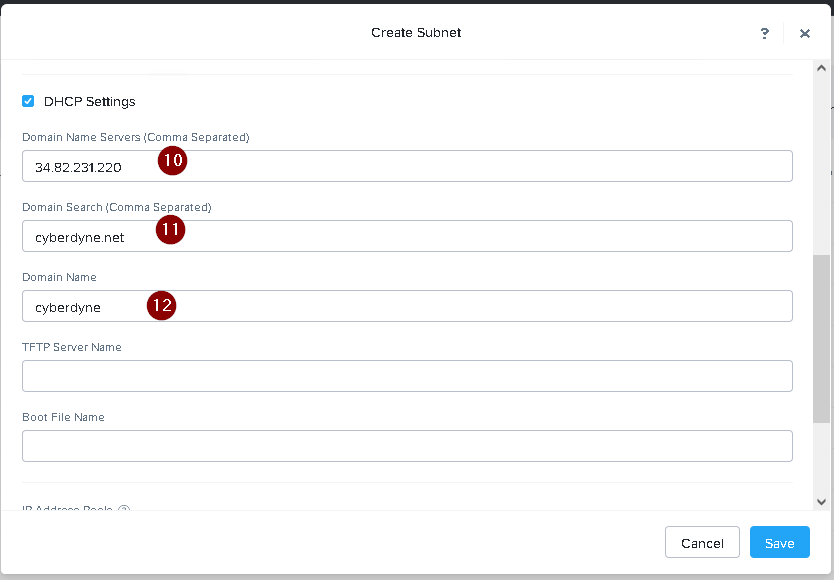
DNS server: 34.82.231.220
Default Gateway: 192.168.0.1
Domain: cyberdyne.net
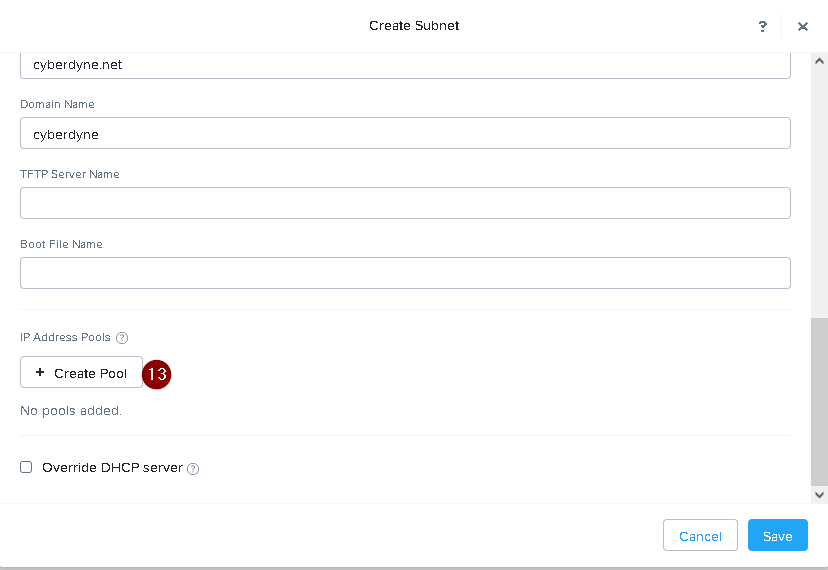
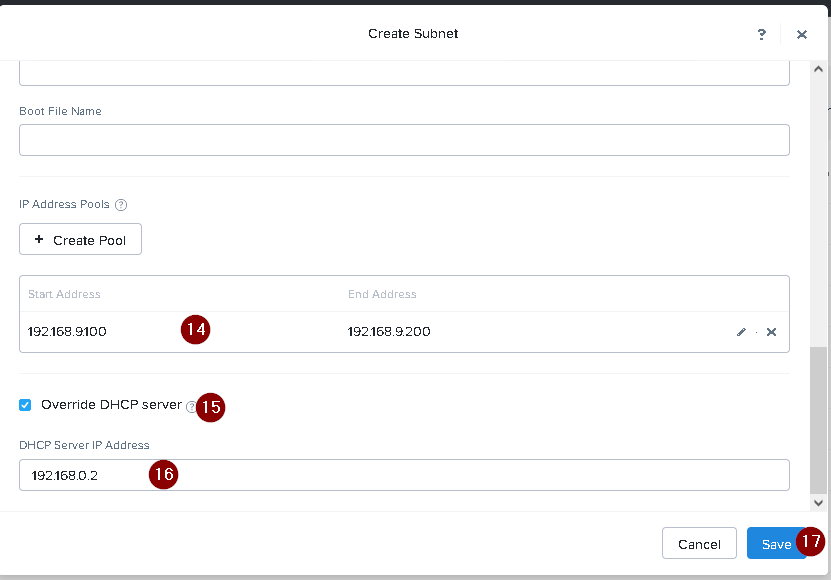
IP Pool: 192.168.9.100-200
DHCP Server IP: 192.168.0.2
Configure the cluster to meet the requirements for the new workload if new objects are required, start the name with 667.
Options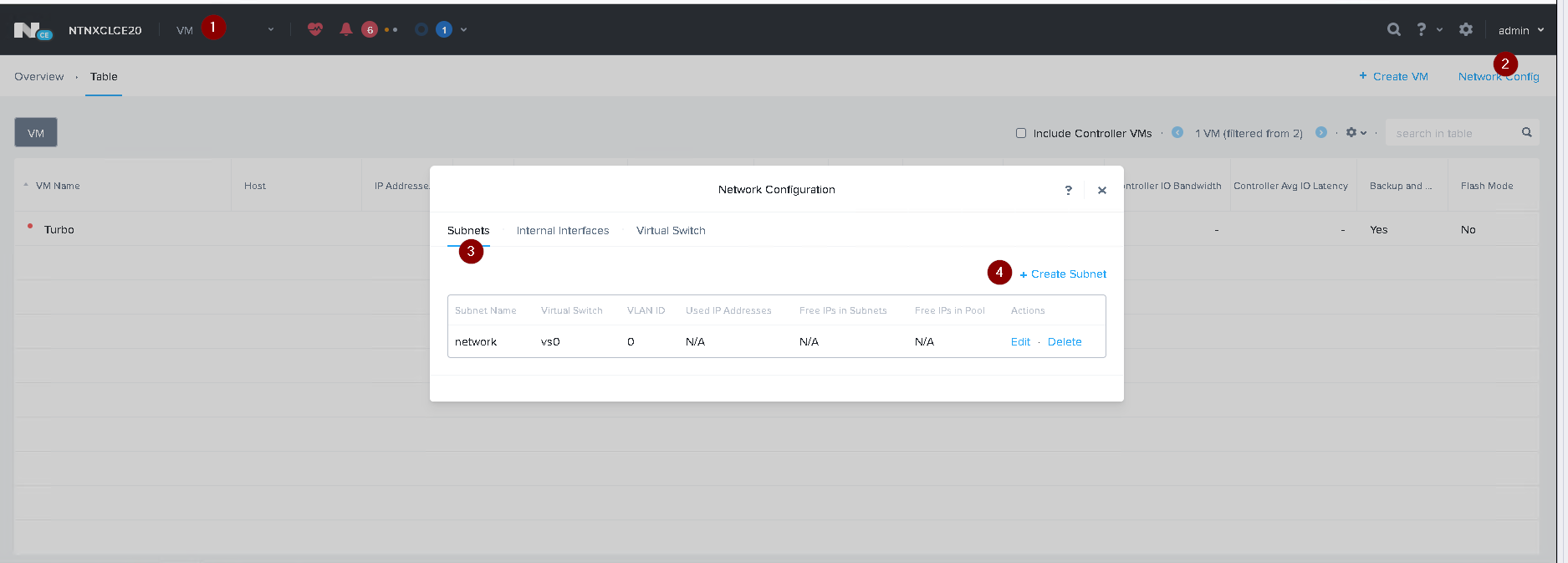
MultipleChoice
Task 13
The application team is reporting performance degradation for a business-critical application that runs processes all day on Saturdays.
The team is requesting monitoring or processor, memory and storage utilization for the three VMs that make up the database cluster for the application: ORA01, ORA02 and ORA03.
The report should contain tables for the following:
At the cluster level, only for the current cluster:
The maximum percentage of CPU used
At the VM level, including any future VM with the prefix ORA:
The maximum time taken to process I/O Read requests
The Maximum percentage of time a VM waits to use physical CPU, out of the local CPU time allotted to the VM.
The report should run on Sundays at 12:00 AM for the previous 24 hours. The report should be emailed to appdev@cyberdyne.net when competed.
Create a report named Weekends that meets these requirements
Note: You must name the report Weekends to receive any credit. Any other objects needed can be named as you see fit. SMTP is not configured.
OptionsMultipleChoice
Task 11
An administrator has noticed that after a host failure, the SQL03 VM was not powered back on from another host within the cluster. The Other SQL VMs (SQL01, SQL02) have recovered properly in the past.
Resolve the issue and configure the environment to ensure any single host failure affects a minimal number os SQL VMs.
Note: Do not power on any VMs
Options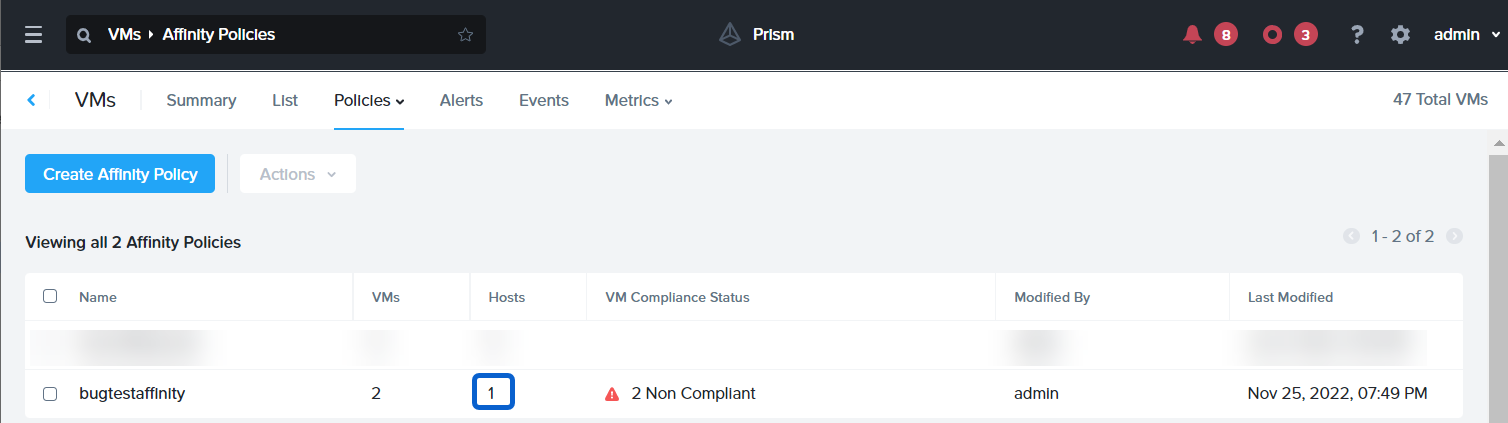
MultipleChoice
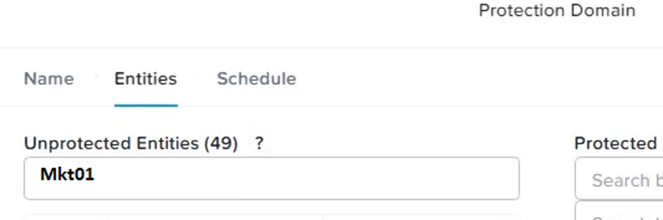
Task 14
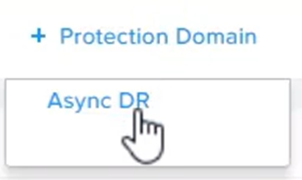
The application team has requested several mission-critical VMs to be configured for disaster recovery. The remote site (when added) will not be managed by Prism Central. As such, this solution should be built using the Web Console.
Disaster Recovery requirements per VM:
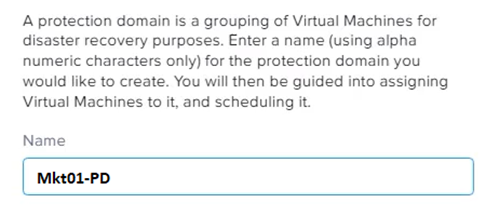
Mkt01
RPO: 2 hours
Retention: 5 snapshots
Fin01
RPO: 15 minutes
Retention: 7 days
Dev01
RPO: 1 day
Retention: 2 snapshots
Configure a DR solution that meets the stated requirements.
Any objects created in this item must start with the name of the VM being protected.
Note: the remote site will be added later
Options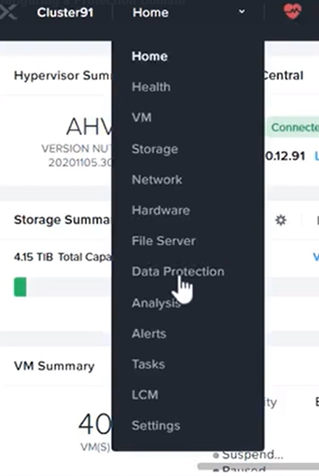



MultipleChoice
Task 15
An administrator found a CentOS VM, Cent_Down, on the cluster with a corrupted network stack. To correct the issue, the VM will need to be restored from a previous snapshot to become reachable on the network again.
VM credentials:
Username: root
Password: nutanix/4u
Restore the VM and ensure it is reachable on the network by pinging 172.31.0.1 from the VM.
Power off the VM before proceeding.
OptionsMultipleChoice
Refer to the exhibit.


Task1
A newly created Windows VM ''SQL02'' is experiencing poor storage performance when compared to ''SQL01'' running within the same cluster, on the same storage container.
The cluster is in a healthy state.
Create a new session named Monitor SQL02 with meaningful metrics. Right click on the session page and click Select All then paste this into Notepad and save it as Task 1.txt on the desktop.
Also, save the analysis as a report named ''MonitorSQL02'' and send the report as a PDF on a daily basis to perf_group@ACME.org. Reports should not be retained. If any new objects need to be created, use monitorvm2 in the name.
Finally, correct the issue within ''SQL02''
Notes:
Do not power on the VMs.
While you will be creating a session, you will need to examine the VM configurations to determine the issue.
Do not delete the VM to resolve the issue, any other destructive change is acceptable
Options