Free Preparation Discussions
 MENU
MENU
Free F5 Networks F5CAB1 Exam Dumps October 2026
Here you can find all the free questions related with F5 Networks BIG-IP Administration Install, Initial Configuration, and Upgrade (F5CAB1) exam. You can also find on this page links to recently updated premium files with which you can practice for actual F5 Networks BIG-IP Administration Install, Initial Configuration, and Upgrade Exam. These premium versions are provided as F5CAB1 exam practice tests, both as desktop software and browser based application, you can use whatever suits your style. Feel free to try the BIG-IP Administration Install, Initial Configuration, and Upgrade Exam premium files for free, Good luck with your F5 Networks BIG-IP Administration Install, Initial Configuration, and Upgrade Exam.MultipleChoice
The BIG-IP Administrator uses Secure Copy Protocol (SCP) to upload a TMOS image to the /shared/images/ directory in preparation for a TMOS upgrade.
After the upload is completed, what will the system do before the image is shown in the GUI under:
System Software Management Image List?
OptionsMultipleChoice
Refer to the exhibit.
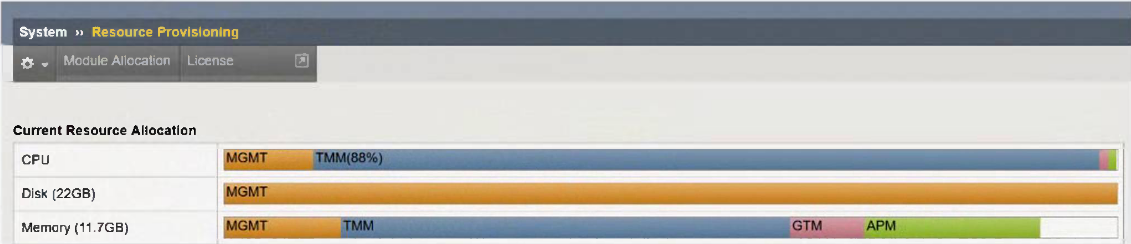
An organization has purchased a BIG-IP license that includes all available modules but has chosen to provision only the modules they require.
The exhibit displays the current resource allocation from the System Resource Provisioning page.
Based on the information provided, which F5 modules have been provisioned?
OptionsMultipleChoice
A BIG-IP Administrator upgrades the BIG-IP LTM to a newer software version. After the administrator reboots into the new volume, the configuration fails to load.
Why is the configuration failing to load?
OptionsMultipleChoice
An F5 VE has been deployed into a VMware environment via an OVF file.
An administrator wants to configure the management IP address so the VE can be accessed for further setup.
Which two are valid methods for configuring the management-ip address? (Select two.)
OptionsMultipleChoice
The Configuration Utility of a BIG-IP device is currently accessible via its management IP 10.53.1.245 from all VLANs.
The BIG-IP Administrator needs to restrict access so only hosts from the 10.0.0.0/24 subnet can access the Configuration Utility.
Which TMSH command accomplishes this?
OptionsMultipleChoice
The BIG-IP Administrator received a ticket that an authorized user is attempting to connect to the Configuration Utility from a jump host and is being denied.
The HTTPD allow list is configured as:
sys httpd {
allow { 172.28.31.0/255.255.255.0 172.28.65.0/255.255.255.0 }
}
The jump host IP is 172.28.32.22.
What command should the BIG-IP Administrator use to allow HTTPD access for this jump host?
OptionsMultipleChoice
What will setting a Self IP to ''Allow None'' for Port Lockdown do?
Options