
Free Preparation Discussions
 MENU
MENU
AutoDesk RVT_ELEC_01101 Exam Questions
- Topic 1: Modeling: This section of the exam measures the skills of Electrical Designers and covers creating and managing electrical elements within Revit. It includes adding electrical equipment such as panelboards and transformers, configuring circuits and low-voltage systems, and using the System Browser for navigation. Candidates must also demonstrate the ability to model connecting geometry, including conduits, cable trays, and wiring, with appropriate settings and fittings.
- Topic 2: Documentation: This section of the exam measures the skills of Revit Technicians and covers manipulating views, templates, and schedules to produce accurate documentation. It includes managing panel schedules, creating various view types such as legends, callouts, and 3D views, and applying phasing and revision management. Candidates are also tested on annotation tools, including tags, keynotes, and note blocks, to ensure clarity and consistency in project documentation.
- Topic 3: Families: This section of the exam measures the skills of BIM Modelers and focuses on creating and editing Revit families. It includes defining MEP connectors, understanding system and component family types, configuring family categories, and setting up light sources. The section also assesses parameter creation, annotation family setup, and controlling element visibility to ensure effective customization and reuse across electrical projects.
- Topic 4: Analysis: This section of the exam measures the skills of Electrical Engineers and focuses on performing analytical tasks in Revit. It includes conducting load calculations, conceptual lighting analysis, and configuring electrical settings for load classifications and demand factors. Candidates must show the ability to use Revit’s analysis tools to ensure proper electrical design performance and energy efficiency.
- Topic 5: Collaboration: This section of the exam measures the skills of Project Coordinators and covers collaboration workflows in Revit. It includes working with imported and linked files, managing worksharing concepts, and using interference checks. Candidates are also evaluated on data coordination through copy/monitor tools, exporting to different formats, managing design options, and transferring project standards to ensure effective teamwork in shared environments.
Free AutoDesk RVT_ELEC_01101 Exam Actual Questions
Note: Premium Questions for RVT_ELEC_01101 were last updated On Oct. 08, 2026 (see below)
Exhibit.
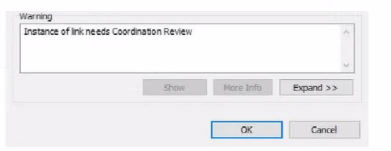
An electrical designer is working within a workshared electrical model The designer reloads the linked architectural model and receives the message as shown in the exhibit What does this message indicate?
The warning message shown --- ''Instance of link needs Coordination Review'' --- appears when Revit detects a modification in a monitored element within a linked model, typically during a coordination workflow between architectural and MEP (electrical, mechanical, plumbing) disciplines.
According to the Revit MEP User's Guide (Chapter 46 ''Copy/Monitor and Coordination Review''):
''When a monitored element changes in the linked model, Revit displays a warning message indicating that the instance of the link needs Coordination Review. You can use the Coordination Review tool to accept, reject, or postpone the change.''
This mechanism ensures synchronization between linked models. For example, if the architectural ceiling or wall that hosts electrical elements (such as lighting fixtures or devices) is modified, moved, or deleted, Revit triggers this alert in the workshared MEP model.
The Smithsonian Facilities Template Guide further emphasizes:
''Coordination Review identifies monitored elements whose hosts or geometry have changed in a linked model. The designer must review these to maintain design consistency.''
Hence, the warning does not indicate a clash or interference (Option A), nor a coordination message created manually in the architectural model (Option B), but specifically a change in a monitored element in the linked architectural model (Option D).
References:
Autodesk Revit MEP User's Guide -- Chapter 46 ''Copy/Monitor and Coordination Review,'' pp. 1084--1088
Smithsonian Facilities Revit Template User's Guide -- Section 3.4 ''Coordination Views,'' p. 86
Autodesk Revit Electrical Design Essentials -- Coordination Workflows and Monitoring Elements
Refer to exhibit.
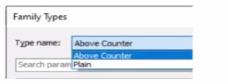
A family in a project contains the following types:
The following edits are made in the Family Editor and loaded into the project:
1. The type Plain is renamed to Standard
2 A new type is added named GFCI
Which types does this family now have in the project?
1. The type Plain is renamed to Standard
In Revit, when editing a family in the Family Editor and reloading it into a project, Revit handles type changes using specific update rules. Types that are renamed overwrite their earlier version in the project because they retain the same internal type ID. Types that are added to the family also appear in the project once reloaded.
Initially, the family contains two types:
Above Counter
Plain
The changes made in the Family Editor are: 1 Rename Plain Standard 2 Add a new type named GFCI
According to documented Revit behavior for type updates:
''When a family is reloaded into the project, any renamed family type replaces its previous version while maintaining its parameter assignments. Newly created types are added as additional family types available for placement within the project.''
Therefore:
Plain no longer exists because it was renamed
Standard now exists in its place
GFCI is added as a new family type
Above Counter remains unchanged
Thus, the family in the project now contains: Above Counter GFCI Standard
This matches answer choice: B. Above Counter, GFCI, Standard
Refer to exhibit.
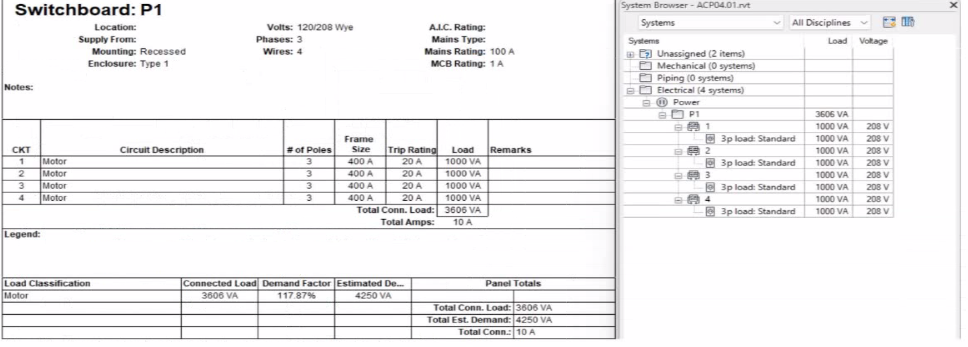
An electrical designer expects the total connected load on the switchboard to be 4000VA. but Revit Indicates a total connected load of 3606VA. What Is the cause of the discrepancy?
In the exhibit, the designer expects the total connected load to equal the sum of the 4 motor loads:
4 motors 1000 VA each = 4000 VA expected
However, Revit is showing a Total Connected Load of 3606 VA instead.
This difference occurs because Revit applies Motor Demand Factors automatically when a load classification is set to ''Motor.'' Demand factors modify the total connected load based on electrical engineering rules.
Revit documentation confirms:
''Assign demand factors to load classifications.''
''Demand loads can be shown on panel schedules.''
In the exhibit, the Load Classification shows Motor with a Demand Factor of 117.87%, which modifies the connected load values in the switchboard totals.
Revit is therefore calculating the effective connected load based on the applied demand factor, not a simple arithmetic sum. That is why the panel's connected load number 4000 VA.
Refer to exhibit.
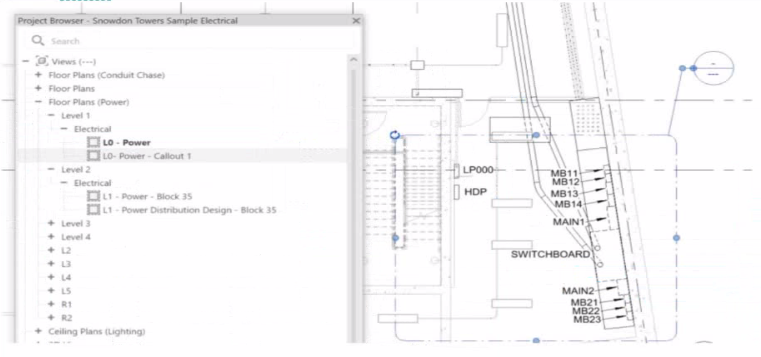
In Autodesk Revit, when an electrical designer creates a callout view, the software automatically generates a new dependent or independent view based on the selected callout type. However, if a callout is accidentally linked to the wrong or redundant view, the designer can easily reassign it to another existing view without recreating the callout. This can be done using the Reference Other View property in the Properties palette.
According to the Revit MEP User's Guide (Chapter 47 ''Views and Callouts''):
''To link a callout to an existing view rather than creating a new one, select the callout, and under the properties for that element, use Reference Other View to specify the desired target view.''
This means that when the designer selects the callout (in this case, shown as ''L0 - Power - Callout 1'' in the Project Browser), they can modify the Reference Other View setting from the Properties palette to point to a different, pre-existing detail view or callout view---for example, one showing an enlarged power distribution layout or switchboard detail.
This is the most efficient workflow because:
It avoids recreating or redrawing the callout (unlike Option C).
It preserves all annotation and sheet referencing data.
It ensures alignment and consistency across sheet references.
The Smithsonian Facilities Revit Template User's Guide reinforces this standard Revit practice:
''When a view reference or callout is incorrectly associated, use the Reference Other View property to redirect the annotation to an existing detail or dependent view.''
Why the Other Options Are Incorrect:
B . Change its type from the Type Selector: Callout types control annotation style (not the referenced view).
C . Delete and recreate: This is unnecessary and inefficient.
D . Open the callout view and change its type: Callout type cannot be changed directly once created; it's controlled by view properties.
Therefore, the correct and Revit-recommended approach is Option A: Select the callout and choose a detail view under Reference Other View.
References:
Autodesk Revit MEP User's Guide -- Chapter 47 ''Views and Callouts,'' pp. 1092--1097
Smithsonian Facilities Revit Template User's Guide -- Section 2.8.1 ''View Types and Templates,'' pp. 29--31
Autodesk Revit Electrical Design Essentials -- ''Callouts, Detail Views, and Referencing Workflows''
Refer to exhibits.
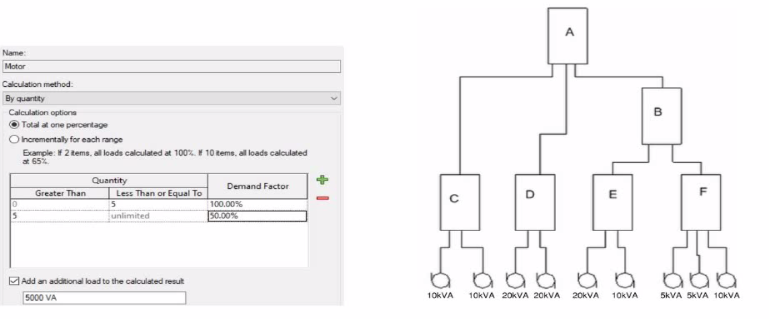
What is the demand load on Panel B?
In Revit Electrical, Demand Factors are applied through Load Classifications to compute an Estimated Demand Load rather than simply summing connected loads. The documentation states: ''You use demand factors to adjust the rating of the main service... Demand factors are assigned to load classifications, and load classifications are assigned to device connectors. The estimated load for a device is calculated by multiplying the load by the demand factor. ... The panel schedule can also display the load for each load classification.''
In the exhibit's Demand Factor definition (for the Motor classification), the Calculation method is By quantity with Total at one percentage selected. Two quantity ranges are defined: 0--5 items at 100% and 5--unlimited at 50%. An additional checkbox adds an extra fixed load of 5000 VA to the calculated result. (This follows Revit's behavior of applying the selected demand factor to the connected load and then adding any specified additional load to the result for that classification.)
Panel B feeds only panels E and F. The connected motor loads downstream are:
Panel E: 20 kVA + 10 kVA = 30 kVA
Panel F: 5 kVA + 5 kVA + 10 kVA = 20 kVA
Total connected motor load on B = 30 + 20 = 50 kVA (five items).
Because five items fall in the 0--5 range at 100%, the demand factor is 100% 50 kVA. Per the definition, add an additional load of 5000 VA (5 kVA) to the calculated result:
Demand Load on Panel B = 50 kVA 100% + 5 kVA = 55 kVA.
Therefore, the correct choice is 55 kVA.
References: Revit MEP Electrical documentation -- Demand Factors (assignment to load classifications, multiplication to compute estimated load, and display in panel schedules).
- Select Question Types you want
- Set your Desired Pass Percentage
- Allocate Time (Hours : Minutes)
- Create Multiple Practice tests with Limited Questions
- Customer Support
Andrew Garcia
21 days agoCharles Walker
1 month agoMonica Lewis
2 months agoLisa Walker
2 months agoAshley Perez
3 months agoDennis Hernandez
3 months agoChristopher Campbell
4 months agoNathan Gonzalez
4 months agoDaniel Nelson
5 months agoWilliam Phillips
5 months agoRebecca Roberts
6 months agoChristopher Johnson
5 months agoWilliam Evans
6 months agoGary Nguyen
5 months agoTimothy Garcia
5 months agoGerald Morgan
5 months agoCallie
6 months agoTeri
7 months agoDomingo
7 months agoNancey
7 months agoBernardo
7 months agoTaryn
8 months agoKing
8 months agoKyoko
8 months agoMagdalene
8 months agoDortha
9 months agoRonny
9 months agoMarsha
9 months agoGracia
9 months agoNieves
10 months agoDenise
10 months agoHoa
10 months agoBettina
10 months agoGenevive
11 months agoWillard
11 months agoOliva
11 months agoGracia
11 months agoAlishia
11 months agoElvera
12 months ago